
Questionnaires can be sent to a patient in one of three ways.
- Several default questionnaires are attached to appointment types (see list below or click here)
- Questionnaires can be sent prior to an appointment for the patient to fill out via the patient portal. These can be sent any time by you or by asking Katrina to send it prior to the appointment for you. For step-by-step instructions for sending a questionnaire to a patient, click here.
- On demand. As a provider you can add one or more questionnaires during your encounter. You can then fill in the responses from patient or parent for inclusion in your note.
Using Patient Submitted Questionnaires
Step-by-step guide:
- Assuming the patient has filled out the questionnaire, you can access it and incorporate it into your clinical note.
- To import this information into your encounter note, first open your note.
- Click the “Questionnaires” tab
- From the drop down select the questionnaire you want to import
- You can edit patient responses on the already pre-filled form if required
- You can now click the Copy button to copy the responses for inclusion in your note.
- After copying the content to your clipboard [CTRL + A, CTRL +C] you may click the X in the upper right of the window to close it.
- Click the “Chart Notes” tab to return to your encounter note
- Under HPI, you can paste in the contents of the questionnaire with a right click > paste, or using the keyboard shortcut [CRTL + V] to paste the contents
- You are free to edit the pasted content in terms of additions, deletions, etc.
Video: Add Patient Filled Questionnaires to your encounter note
What to do if you do not find a patient filled questionnaire
If you do not see an expected questionnaire in the list of filled questionnaires, you can still incorporate the information into your note, but you will need to take a few extra steps.
- To check whether or not the questionnaire has been filled out, you can check patient messages.
- From the left side menu click “Patient Details” and then to the right, select the Questionnaires tab.
- You will see a listing with questionnaire title and status and time for each questionnaire a patient has been sent.
- In order to see which questionnaire it is, you can click the subject line and view it just as you would an email message.
- Click the blue hyperlink to view the responses
- From the window that displays, you will have to manually copy the content to incorporate into your note.
- Select all the content and right click to copy or use the keyboard command [CTRL + C]
- Close the window and return to your clinical note
- Under HPI, you can paste in the contents of the questionnaire with a right click > paste, or using the keyboard shortcut [CRTL + V] to paste the contents
- You are free to edit the pasted content in terms of additions, deletions, etc.
Adding Questionnaires During an Encounter
Step-by-step guide:
- From within your encounter, click the “Questionnaires” tab.
- You should see text that states “No questionnaire is associated to this encounter. Add Now“
- OPTIONAL Before the next step, you should consider opening an additional browser tab with your current note in it as you can flip between the questionnaire and your note should you need to.
- Click “Add Now” to select the questionnaire you want. For a complete listing of available questionnaires, click here.
- Select the questionnaire you want to fill out with the patient
- After filling the questionnaire out, click the Save button.
- You can now click the Copy button to copy the responses for inclusion in your note.
- After copying the content to your clipboard [CTRL + A, CTRL +C] you may click the X in the upper right of the window to close it.
- Click the “Chart Notes” tab to return to your encounter note
- Under HPI, you can paste in the contents of the questionnaire with a right click > paste, or using the keyboard shortcut [CRTL + V] to paste the contents
- You are free to edit the pasted content in terms of additions, deletions, etc.
Sending a Questionnaire to a Patient
- Find the patient you want to send the questionnaire to
- From the “Messages” menu, click the white downward triangle on the Compose button.
- Click “Questionnaire” to load the possible choices
- Tick the checkbox next to the questionnaire you want (you may send more than one)
- After making your selection, click the Send button.
- This will send a message letting the patient know there is a pending questionnaire to fill out prior to their next appointment.
Default Questionnaires Attached to Appointment Types
| Visit Type | Questionnaires |
| New – Clinic – Adult |
|
| New – Clinic – Child |
|
| New – Telemed – Adult |
|
| New – Telemed – Child |
|
List of Patient Questionnaires in Charm
| Name | Type | Notes |
|---|---|---|
| (TF) - ASRS - Adult Self-Report Scale for ADHD | General Questionnaire | Adult patients who present for c/o ADHD |
| (TF) - Authorization for Release of Information | Consent Form | |
| (TF) - CONSENT TO TREAT/ASSIGNMENT OF BENEFITS/ RELEASE OF INFORMATION/HIPAA/ATTENDANCE | New Patient Form | |
| (TF) - Covid-19 Patient Self-reported Screener | General Questionnaire | |
| (TF) - Credit Card Authorization Form | New Patient Form | |
| (TF) - Dr. Herring - Doxy Link | General Questionnaire | |
| (TF) - DRAFT New Patient Interest Form | Pre-screening Form | Draft |
| (TF) - DRAFT Patient Feedback - Dr. Herring | Feedback Form | Draft |
| (TF) - DRAFT Patient Feedback - Vaden | Feedback Form | Draft |
| (TF) - Google Review | Feedback Form | Draft |
| (TF) - HIPAA Privacy | General Questionnaire | |
| (TF) - Horton - Doxy link | General Questionnaire | |
| (TF) - New Patient - Adult | General Questionnaire | |
| (TF) - New Patient - Child | General Questionnaire | |
| (TF) - NICHQ Vanderbilt Assessment Scales | General Questionnaire | |
| (TF) - NICHQ Vanderbilt Assessment Scales; Parent Follow-up | General Questionnaire | |
| (TF) - Permission to Share Information | New Patient Form | |
| (TF) - Post-Visit Survey | Feedback Form | |
| (TF ) - SCARED - Child Questionnaire | General Questionnaire | |
| (TF) - SCARED - Parent Questionnaire | General Questionnaire | |
| (TF) - Telemedicine Consent | New Patient Form | |
| (TF) - Telemedicine Success | General Questionnaire | |
| (TF) - Urgent Consult Fee Acknowledgement | Consent Form | |
| (TF) - Vaden - Doxy link | General Questionnaire | |
| (TF) - Vanderbilt Parent Informant | General Questionnaire | |
| (TF) - Waiver of Insurance Billing | General Questionnaire | |
| (TF) - Wigington - Doxy link | General Questionnaire |
Questionnaire as Charm message attachment (Alternate Method)
Some questionnaires may be easier to fill out by the patient at home after printing the attachment. Certain providers may also have a preference for certain questionnaires. One example of this is the Vanderbilt.
To send a Vanderbilt as a PDF attachment in Charm, follow the steps:
Compose a new message to the patient, and click the paperclip icon next to “Attach” and select “From ChARM Documents.
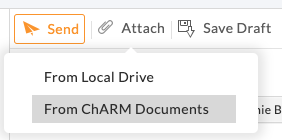 Select the document or documents you wish to attach. In this case the Parent Vanderbilt. After it is attached, send your message.

Special Circumstance Questionnaires
- (TF) – Parental Agreement
- Used when parents share decision-making or conflict exists regarding care or financial responsibility.