Background
Letter (Report) Templates
| Letter / Report Title | Description |
| (TF) – Dx + Med List Letter | Lists active patient diagnoses in the chart as well as active prescribed medications. |
| (TF) – Dx List Letter | Lists active patient diagnoses in the chart. |
| (TF) – ESA Letter |
Generates an Emotional Support Animal letter |
| (TF) – School Medication Note | Lists patient name, dob, and active medications with a section that can be edited for instructions for taking the med. Often these are requested for schools or pre-school/daycare. Some schools do have a specific form they request to have filled out instead of this letter. |
| (TF) – School Note |
A note to explain absence or tardy from school due to treatment with us. |
Instructions for Generating a School Note
While the instructions in this article pertain to generation of a School Note, the workflow is very similar for other letter/report types. Please reference the available letters above.
Within Charm generating a school note is quick and easy, it can be done from the encounter window or after an encounter has been completed.
After generating the school note, you can continue to edit it, print it, and directly share it from the same window.
Generate from within the current encounter or from last encounter
1.) At the top of your screen, click the Reports button and then click New Report

2.) Select “(TF) School Note and then click Generate

3.) The generated school note window is now visible.
Additional functions available after the school note is generated
Edit: You can click the pencil and paper icon to continue to edit the generated note if you wish to add additional information to it.
Print: Direct printing is available via the printer icon
Share with patient: Click the 3-node icon to directly share the generated note with your patient.

Viewing Past Reports
There are two ways to view past reports.
- Timeline View: From the “Dashboard” menu, click “Timeline” and search for “(TF) School Note”. The note can be opened by clicking on it in. Note: You can not edit, print, or share the note from this location.

- Encounters menu: From the encounters menu on the left, select “Past Reports” from the secondary menu.
- Clicking on the report will open it in a new window where you can edit it with all the same functions mentioned above.

Patient Portal Functions
From within the patient portal patients can download the school note or enter an email address to share it.
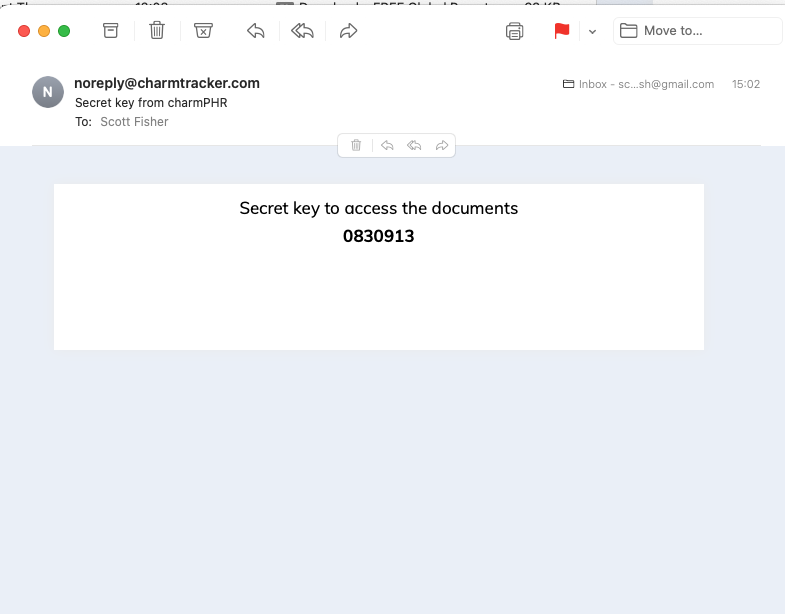
After the patient shares the note with someone via email, the recipient will receive an email notifying them that a document has been shared.
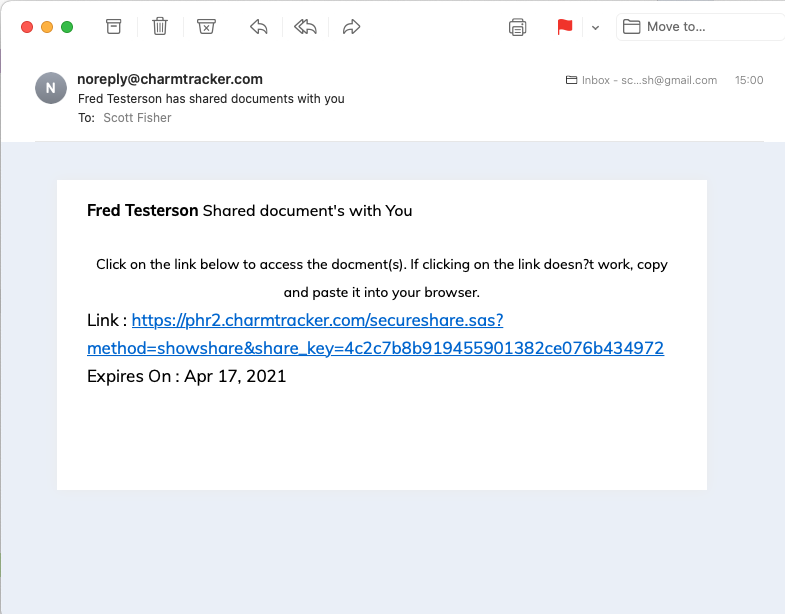
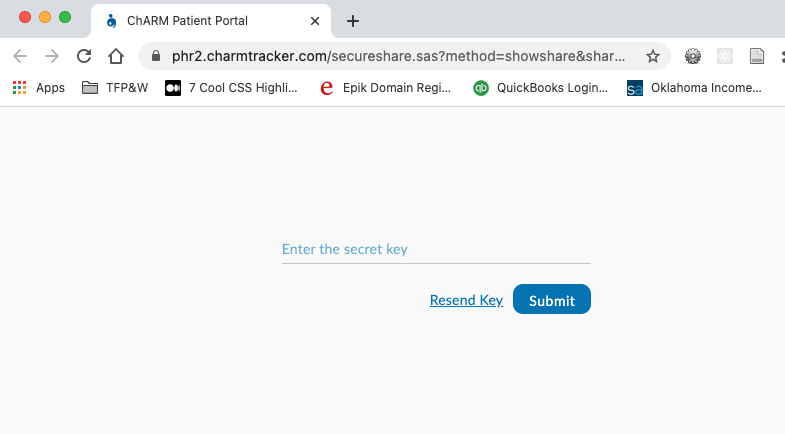
Clicking the link will take the recipient to a landing page that will ask them for a secret key.
A second email will be sent to the recipient with the secret key.