
Lab templates have been created for easy ordering. You can order labs from your encounter note or from the patient Lab Records section.We will cover both methods which are mechanically similar.
The labs we order in Charm are via our interface with DLO/Quest. Labs ordered this way have their results flow back into Charm resulting in a seamless workflow. Use of outside labs is discouraged as it adds an administrative burden to the staff to import and update results for you to review.
Available Lab Templates
| Template Name | Lab Tests |
|---|---|
| Depakote Baseline | CBC, CMP |
| Depakote Level (Valproic) | Valproic Acid |
| Lithium Baseline | CBC, CMP, Thyroid Panel + TSH |
| Lithium Level | Lithium Level |
| Metabolic Baseline | CBC, CMP, Hgb A1c, Lipid Panel |
| Metabolic Monitoring - 3 Month | CBC, CMP, Hgb A1c, Lipid Panel |
| Metabolic Monitoring - Annual | CBC, CMP, Hgb A1c, Lipid Panel |
| MTHFR | MTHFR |
| Prolactin Level | Prolactin |
| Thyroid Panel + TSH | Thyroid Panel with TSH |
| TSH | TSH |
| Vitamin D, 25-Hydroxy Total | Vitamin D - 17306 |
Lab order from Encounter Note
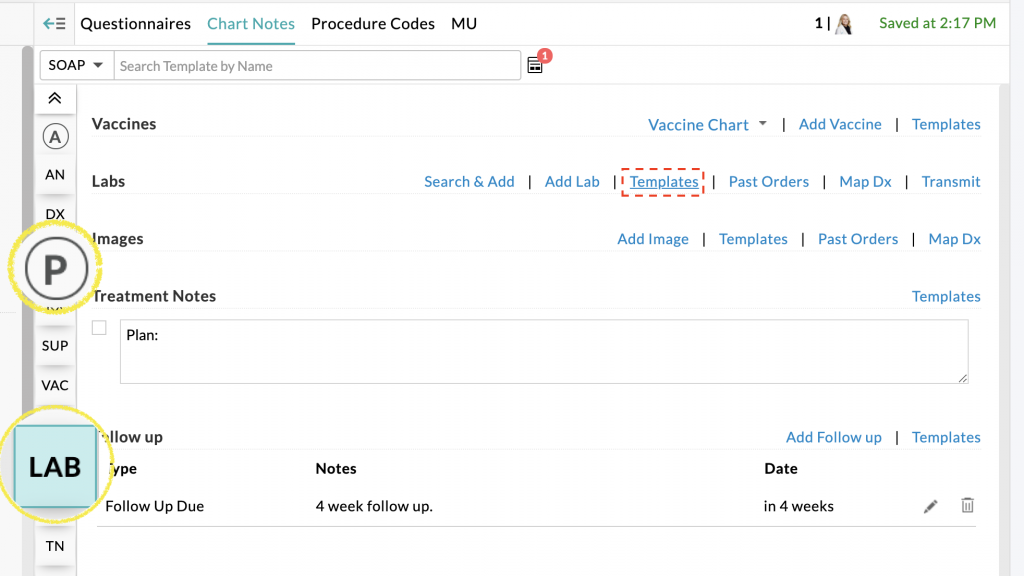
- In your SOAP note navigate to your Plan section and click the “Templates” link
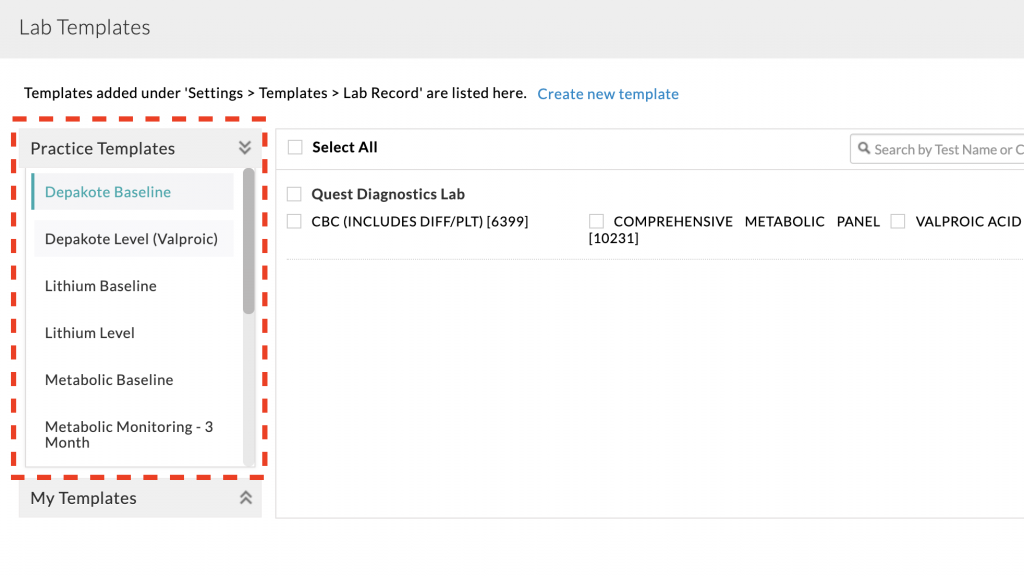
- From the “Practice Templates” menu, scroll to select the lab or lab(s) you want to order.
 Tick the box next to an individual lab or tick the “Select All” box to check all labs listed. For example, if you just wanted a CMP and not the entire Depakote Baseline panel, you would just tick the box for CMP. If you want all the labs associated with the Depakote Baseline, you would tick the “Select All” box.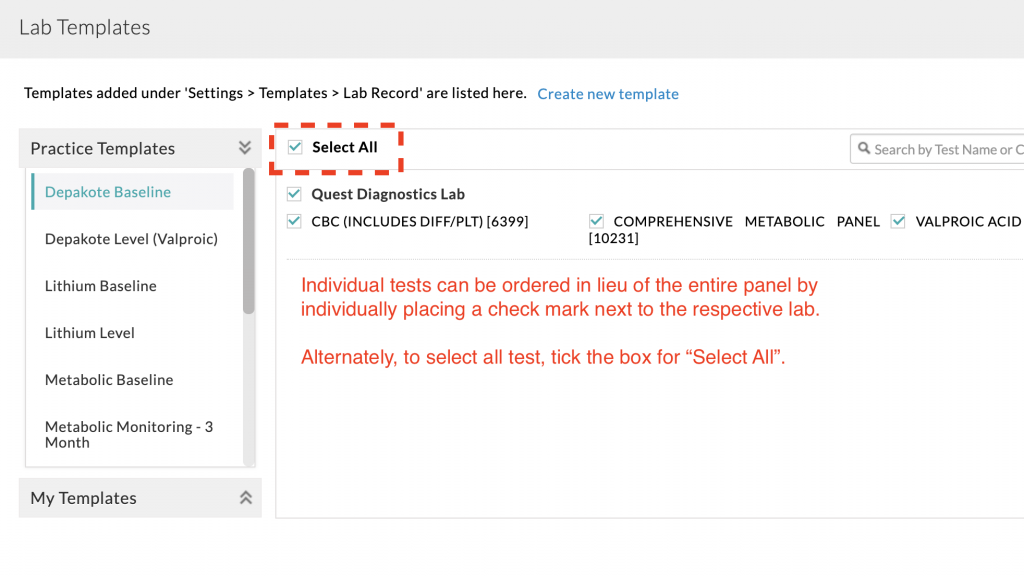
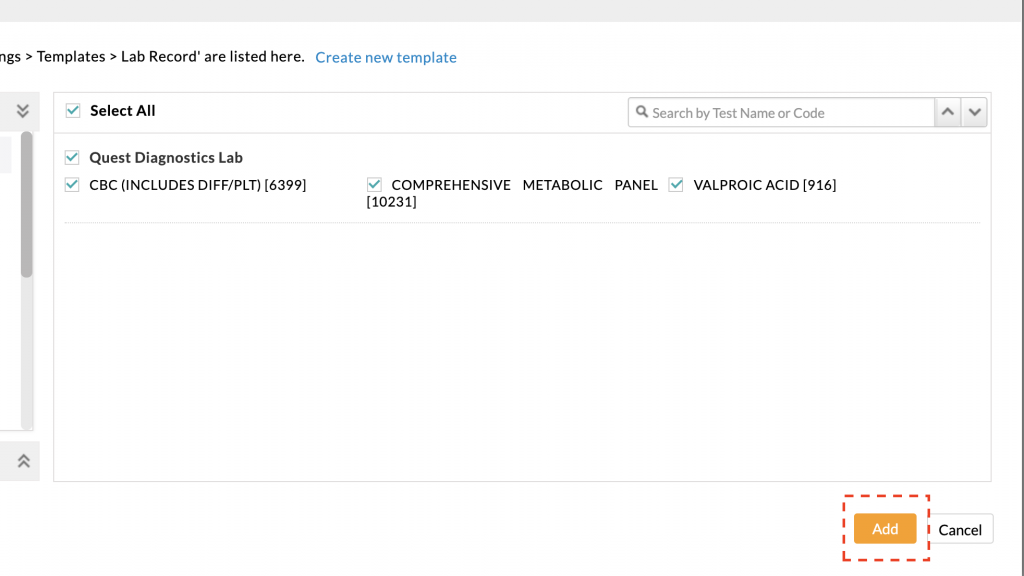
- When you have selected all desired labs, click the Add button to close the Lab Templates window.
- Next we will map diagnoses to the order(s) and then transmit the order.
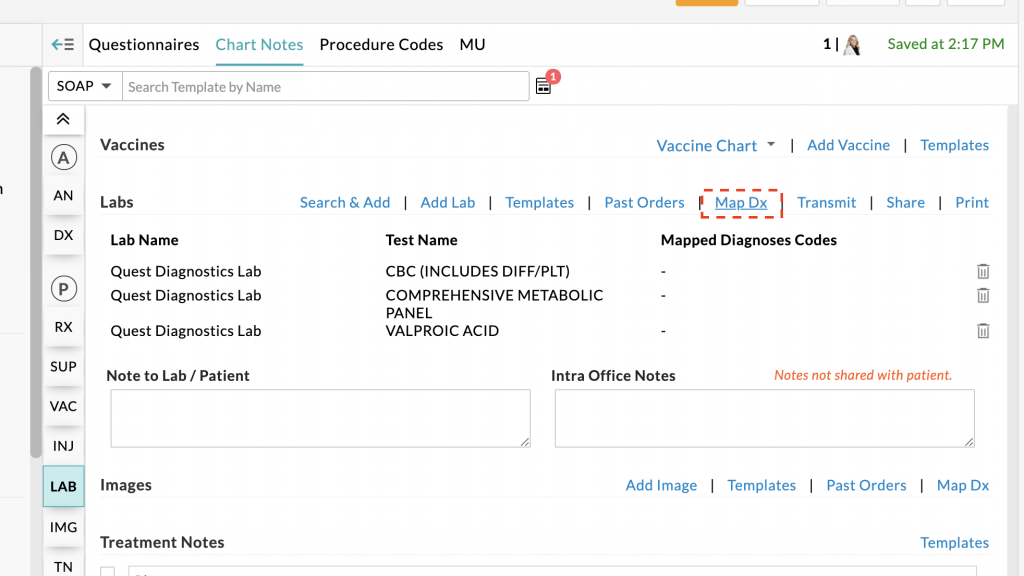
- On the “Labs” line in your note, click the “Map Dx” link as shown to open the Map Dx window.
 When the Map Dx window opens, you can assign all Active Dx to the orders or modify them as you see fit via ticking the box(s) as required.
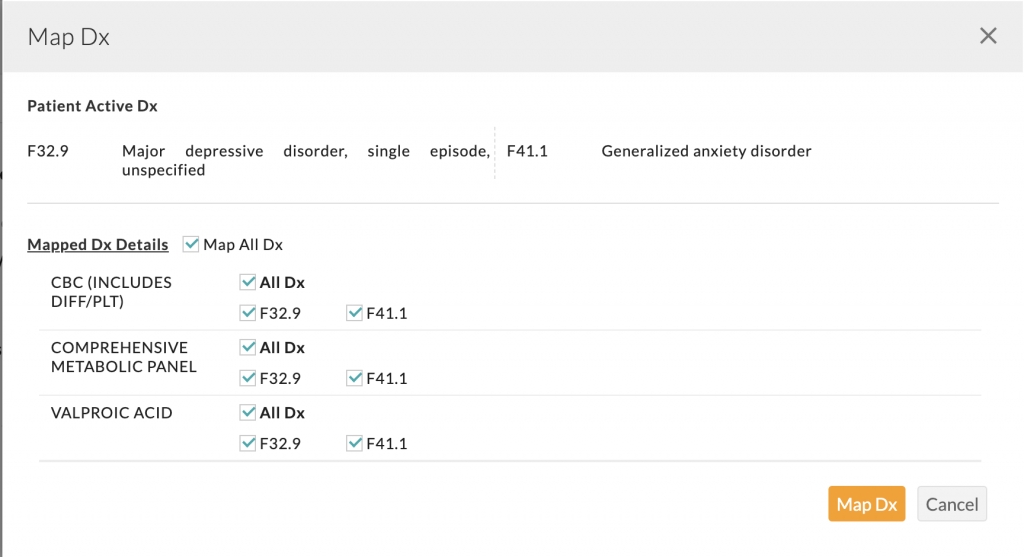
- After making your selections, click the Map Dx button to close the Map Dx window.
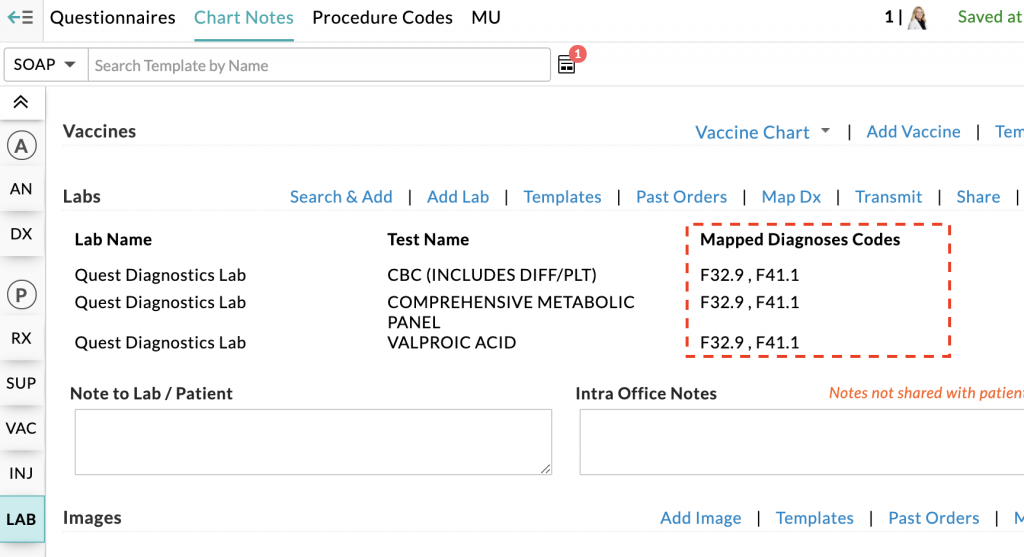
- You will notice that the selected Dx codes are now mapped to your lab orders.
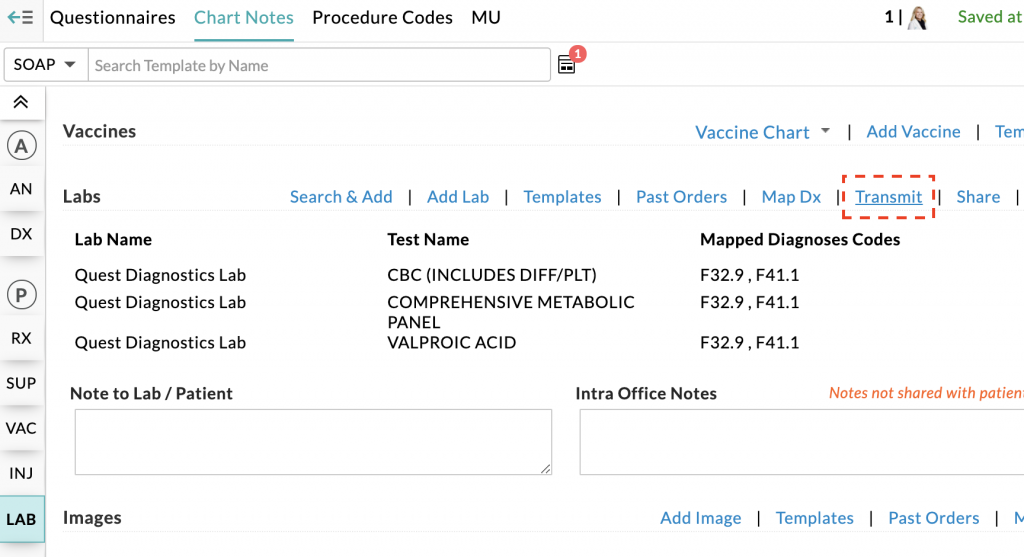
- Transmit the order(s) by clicking the “Transmit” link which opens the Lab Orders List window.
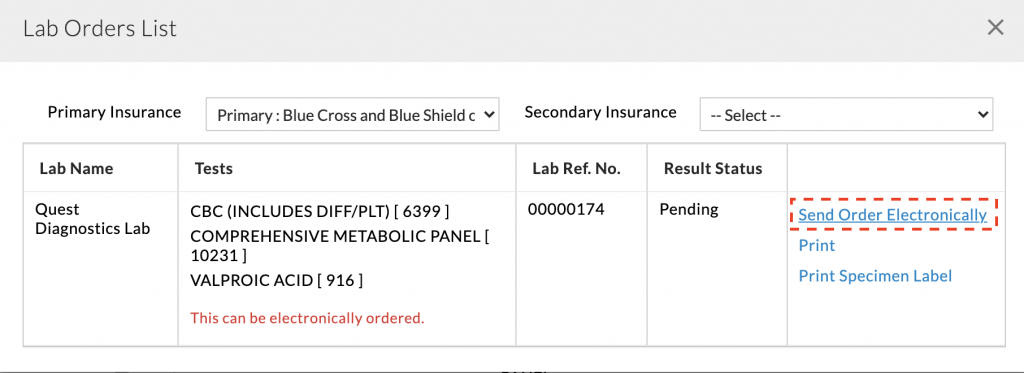
- In the Lab Orders List window be sure primary, and if applicable, secondary insurance are selected in their respective drop downs.
- Assuming the patient will visit a DLO/Quest Patient Service Center (PSC), click the link labled “Send Order Electronically” to transmit the order to the DLO/Quest system. The patient can visit ANY location for the lab draw.
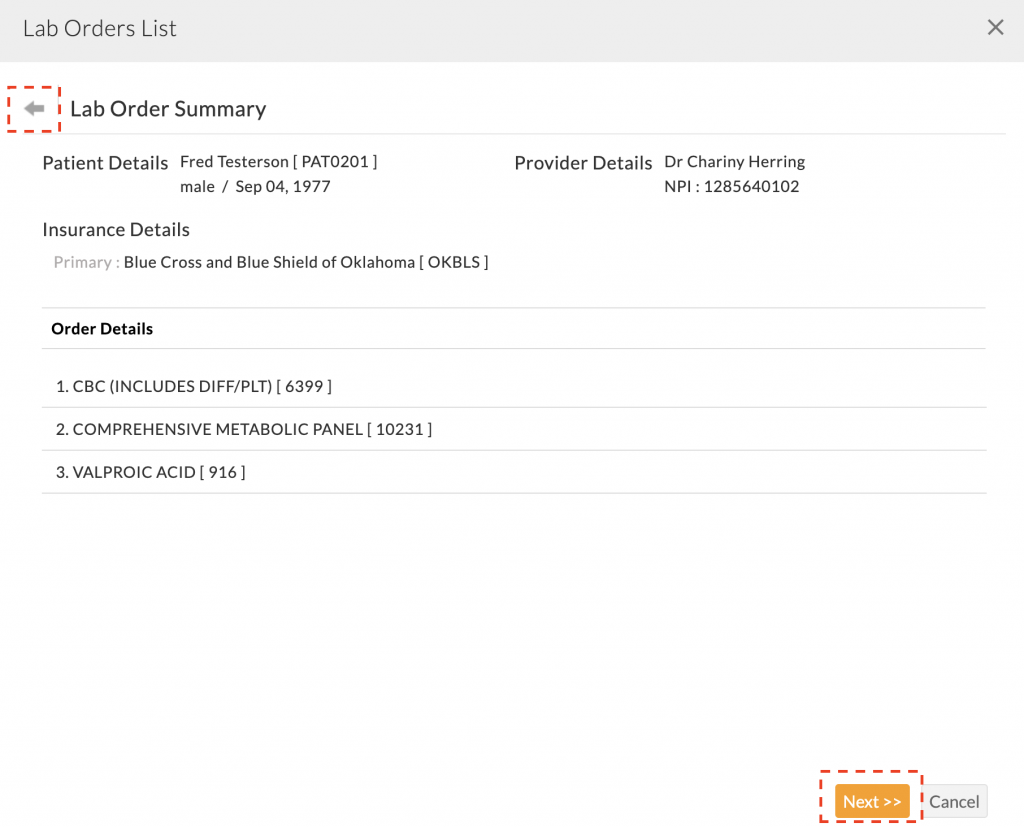
 A summary window will appear allowing you to review your orders before submission. If you need to make any edits, you can click he gray back arrow in the top left of the window. If all looks good, click the Next >> button.
 You may optionally specify a collection date/time but note that If an external lab collects the specimen, specimen collection date can have a tentative future date.
- You may enter any additional comments in the “Internal comments to Lab” field you find necessary.
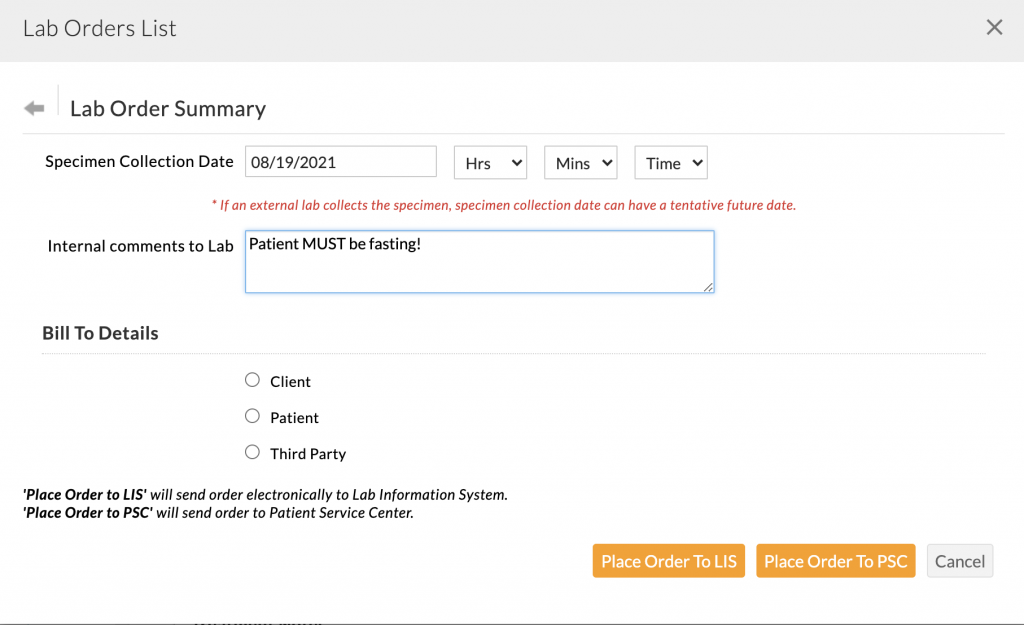 Under Bill to Details, select “Third Party” if the patent is using their insurance. If they are self-pay, select “Patient”. (We never use “Client” bill as the charge would come to the practice in that case.)
- You will need to select the patient’s insurance by clicking the “Insurance Details” tab. You can simply click the two arrow circle to update the selection.
 For the final step, scroll down and click Place Order to PSC
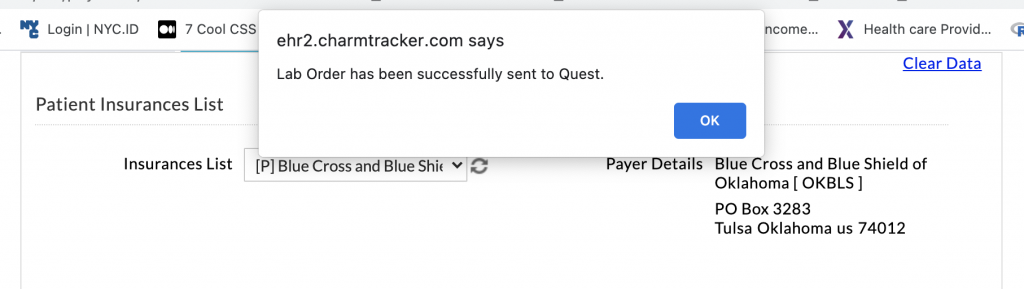
 You should receive confirmation your order was successfully transmitted. This completes the lab ordering workflow.
Lab order from Lab Records
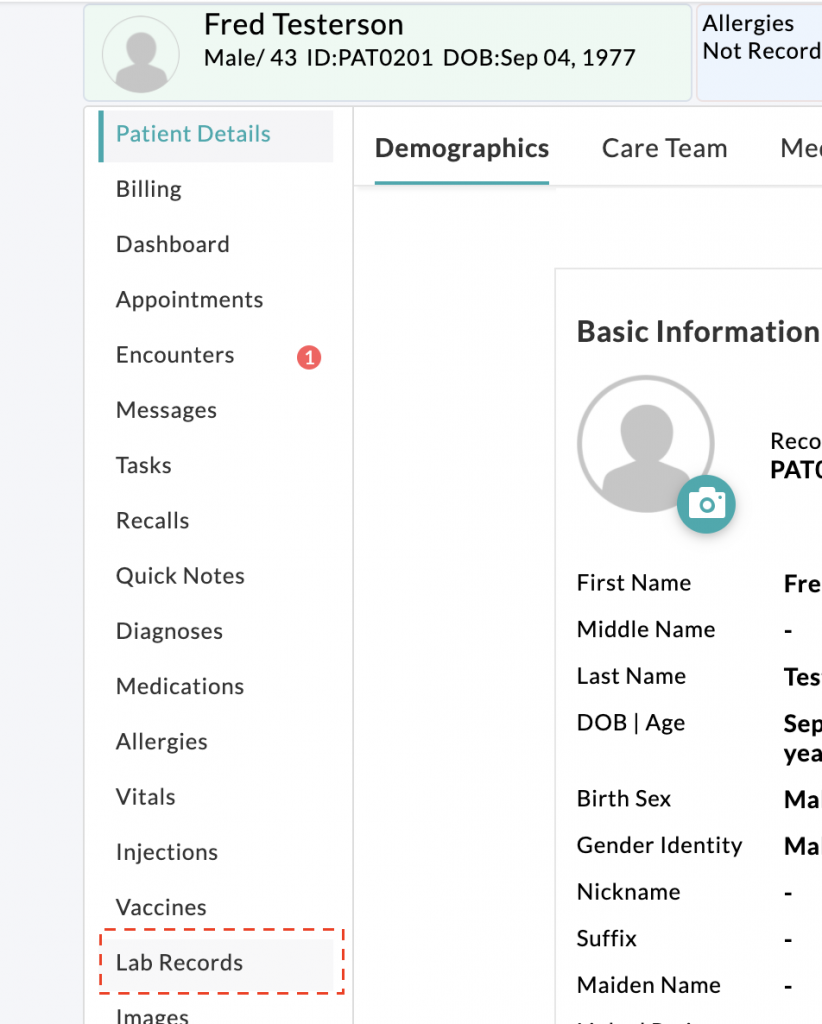
- Search for the patient and then select “Lab Records” from the left menu.
 Select the “Lab Orders” tab and then click + Lab Order to add a lab order.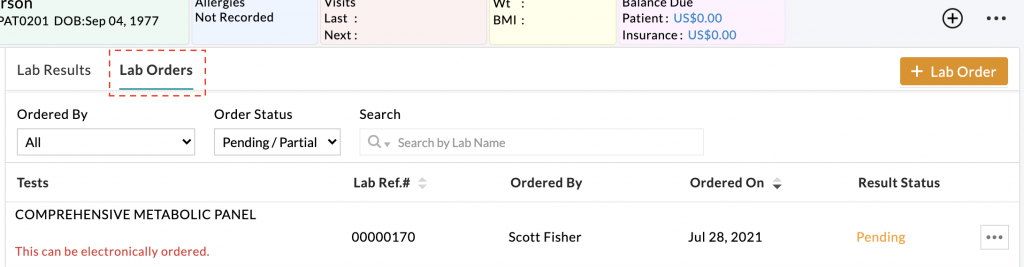
- Click the “Templates” link to open the “Add Lab Order Window”.
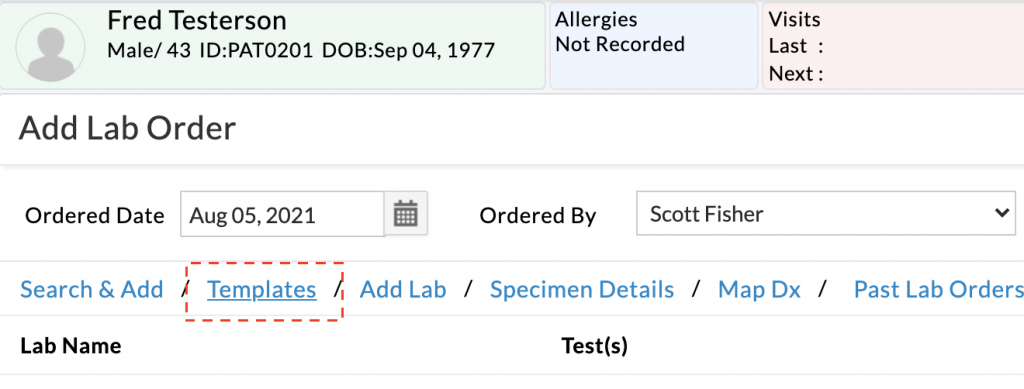
- From here the steps are the same as previously described starting from step 2 of Lab order from encounter.
Lab Diagnosis Codes
Subject: Ensuring Accurate Diagnosis Coding for Lab Orders
Dear Providers,
We wanted to address an important issue regarding lab orders and insurance coverage. On a regular basis, we receive follow-up requests from DLO asking for more specific diagnosis codes to justify the labs ordered. The diagnosis codes typically mapped to labs alone are often not sufficient for insurance coverage.
To reduce these follow-ups and ensure proper coding:
- Commonly ordered labs such as metabolic panels, CBC, Vitamin D, and other miscellaneous tests may require additional specific codes.
- Consider including Z79.899 (Other long term (current) drug therapy) as it often applies in our context.
- You can find Z79.899 and other helpful codes in the (TF) – Labs Diagnosis Pick List.
Some other frequently used codes include:
- Abnormal weight gain: R63.5
- Abnormal weight loss: R63.4
- Disorientation, unspecified: R41.0
- Therapeutic drug level monitoring: Z51.81
- Other amnesia: R41.3
- Other fatigue: R53.83
- Other malaise: R53.81
- Vitamin D deficiency, unspecified: E55.9
- Weakness: R53.1
Please review your lab orders and include any relevant codes to ensure claims are processed smoothly. Let us know if you have any questions or need further clarification.